The library is where your choir’s music lives. A song is the container; the audio attached to it is a set of recordings, and which kind you choose decides who can hear it.
Check copyright and licensing before uploading. Owning printed copies does not give you the right to digitize them, and that catches a lot of choirs out.
Creating a song
A song needs a title. Two optional fields are worth filling in:
- Tempo (BPM) drives the count-in metronome your singers hear when they record against this song. Leave it blank and a default is used, which is usually not the tempo you want.
- Available to decides whether the song belongs to this choir alone or to every choir in your organization. Shared repertoire (a hymn everyone sings) is worth setting at the organization level so you only maintain it once.
Deleting a song deletes every recording attached to it, and can’t be undone.
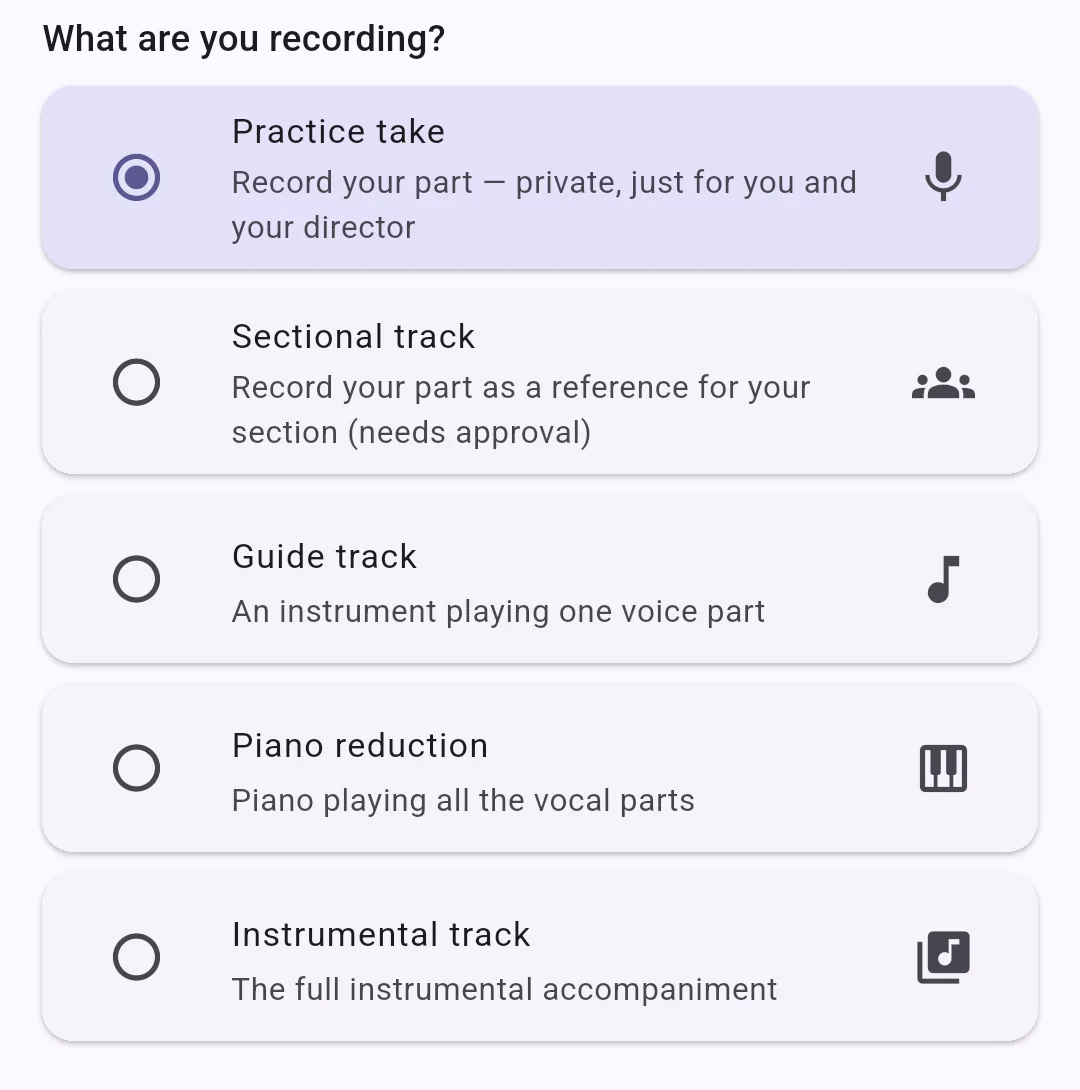
The kinds of recording
| Kind | What it is | Who records it | Visible |
|---|---|---|---|
| Instrumental track | The accompaniment alone, no voices | Accompanist or director | Immediately |
| Piano reduction | Piano covering all the vocal parts | Accompanist or director | Immediately |
| Guide track | Piano or another instrument on one voice part | Accompanist or director | Immediately |
| Sectional track | A person singing one part, as a model for that section | Anyone | Only once published |
| Practice take | A member singing their own part | Any member | Never shown to other members |
The distinction that matters day to day is the last two. A sectional track is teaching material meant for the whole section, so it waits for a director or section leader to publish it before anyone sees it. A practice take is a member’s own work, private from other singers, visible to you.
The first three kinds anchor an arrangement, which is why the app groups a song’s recordings by the accompaniment they go with. If you upload an instrumental track and a piano reduction of the same arrangement, singers can mix between them.
Adding audio
You can record in the app or import a file. MP3, M4A and WAV are accepted for import, and so is MIDI, though a MIDI file with no tempo stored inside it will ask you to type one before it can be used.
Backing tracks can be renamed after the fact, which is worth doing when a song ends up with three files called Take 3.
Deleting a backing track
Deleting a backing track removes it for everyone in the choir, and members can no longer play or record against it. Practice takes members already recorded against it are not retroactively broken, but nobody can make new ones.
Members see the deletion the next time their app refreshes, so give it a moment before assuming it didn’t work.
Recording settings
Under the choir’s Features › Member recordings you can:
- Allow member uploads: let singers add a take from their device rather than only recording in the app.
- Require director approval: new takes stay hidden until you publish them.
- Set how many takes are kept per song: older ones drop off as singers add new ones.
Seeing who has practiced
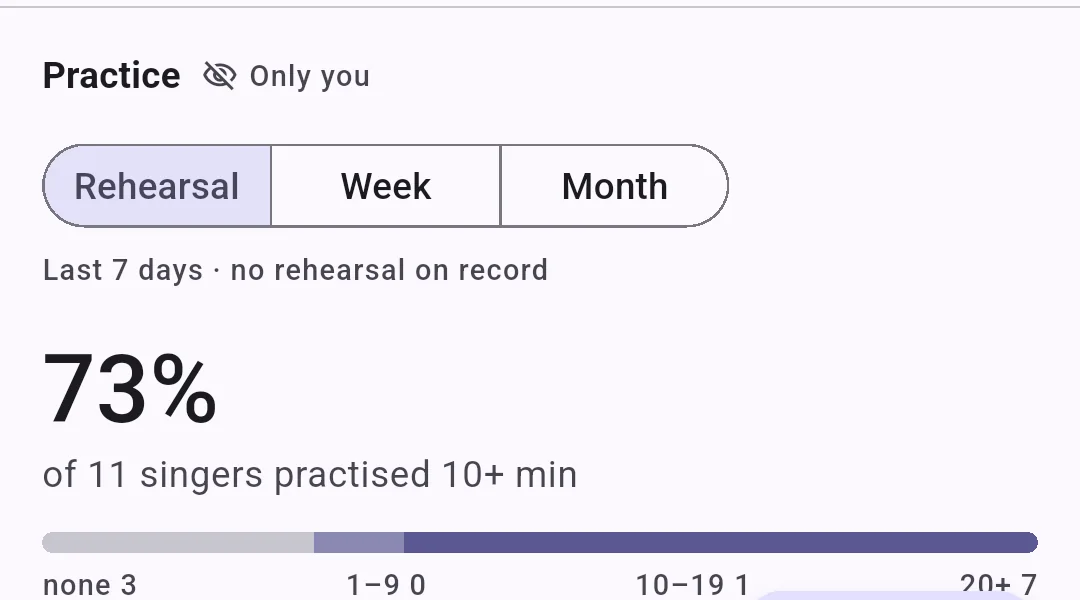
Each song carries a practice panel that only you can see. It reports what share of your singers have practiced the piece, over the last rehearsal cycle, week, or month, and breaks the choir down by how long they spent.
Counts as practised sets the bar, and the default is ten minutes. It changes what the percentage means, not what is recorded, so you can move it without losing anything.
A choir that keeps no calendar has no last rehearsal to measure from, so the rehearsal view needs the calendar feature switched on to be useful.
Sorting by Needs a nudge puts the singers with the least practice first, which is the list worth acting on before the next rehearsal.
Playlists
A playlist is the running order for one occasion: Sunday 9am, Advent carol service, Spring concert. Library › Playlists › New playlist starts one, and Add songs fills it. Drag the handle on the right of a row to change the order.
Every member of the choir can read a playlist. Directors build them.
Each piece can carry a note — “verses 1, 3, 5”, “descant on the last” — which is the sort of thing that otherwise lives on a scrap of paper on the organ.
The same song can appear twice in one order. A hymn reprised at the end is a real running order, so nothing stops you.
Attaching a playlist to a date
A playlist can be attached to as many events as you like, from the playlist screen. A concert you give on the Friday and again on the Saturday is one programme, not two, and it shows on both dates.
Attached playlists appear on the event itself, so a singer opening Sunday in the calendar sees what is being sung.
Sharing an order
Share sends the running order out as text — numbered, with composers and any notes, and the dates it is sung at. It goes wherever you already send things: to your organist, to whoever prints the pew sheet, into an email. They don’t need a Choirside account to read it.
When the season is over
Archive takes a playlist out of the list without deleting it, which is what you want for last Christmas. You can bring it back. Delete removes the running order for good — the songs themselves are untouched either way, because a playlist only points at them.
Playing an order through
Play through starts at the top and moves to the next piece as each one finishes. Tap a piece’s number to start from there instead — a rehearsal that begins at the anthem is the usual case. Skip and previous appear on the lock screen and on your headphones while an order is playing, and the mini player says how far through you are.
There is a short pause between pieces while the next one loads. A service has talking between the items anyway, so we would rather it load properly than stutter trying to be seamless.
A piece with nothing recorded against it is skipped — the hymn your organist plays live can sit in the order without stopping the run.
If you have looping or repeat switched on, that wins: the piece you are drilling repeats rather than moving on.
Getting everything back out
Open the choir › Export choir library builds a zip of everything the choir has: the backing tracks and everyone’s recordings. It takes a few minutes and we email you a link when it’s ready. Archives are deleted after a week, and you can ask for a fresh one any time.