You’ve joined your choir and you’re looking at the app for the first time. Here’s what’s in front of you.
Finding your way around
Along the bottom you’ll see up to five tabs:
- Library: your choir’s songs, and the recordings attached to each one. Always there.
- Messages: announcements from your director and section leaders, bulletins, and polls.
- Calendar: rehearsals, services, and performances.
- Attendance: who was at what.
- Settings: your account, your choirs, and how the app behaves.
Only Library and Settings are always present. The other three appear only if your choir has switched that feature on, so your app may well have fewer tabs than a friend’s in a different choir. Nothing is broken. New choirs start with the calendar off.
Practicing with a song
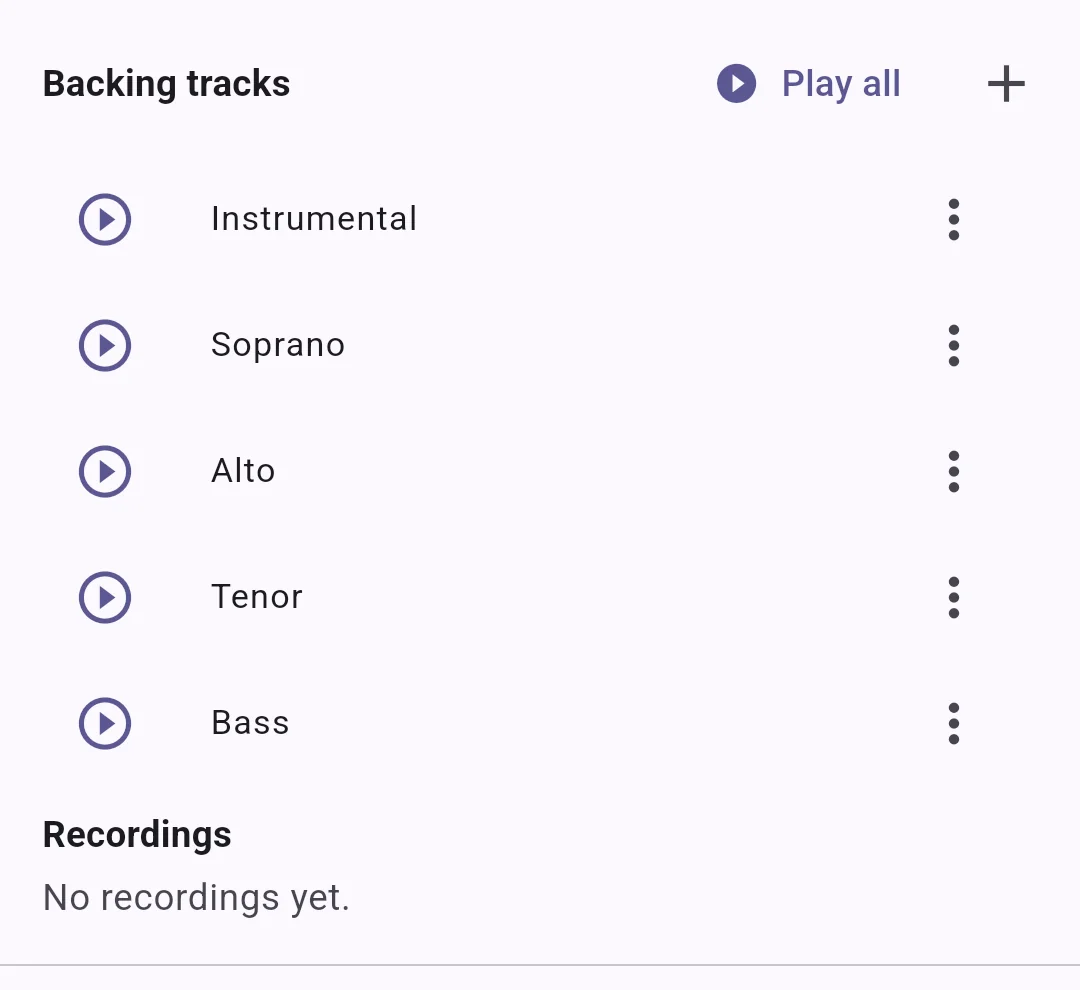
Open a song from the Library and you’ll find its recordings, grouped by the accompaniment they go with. Depending on what your director has uploaded that might include an instrumental track, a piano reduction, a guide track for a single voice part, or sectional tracks sung by another member.
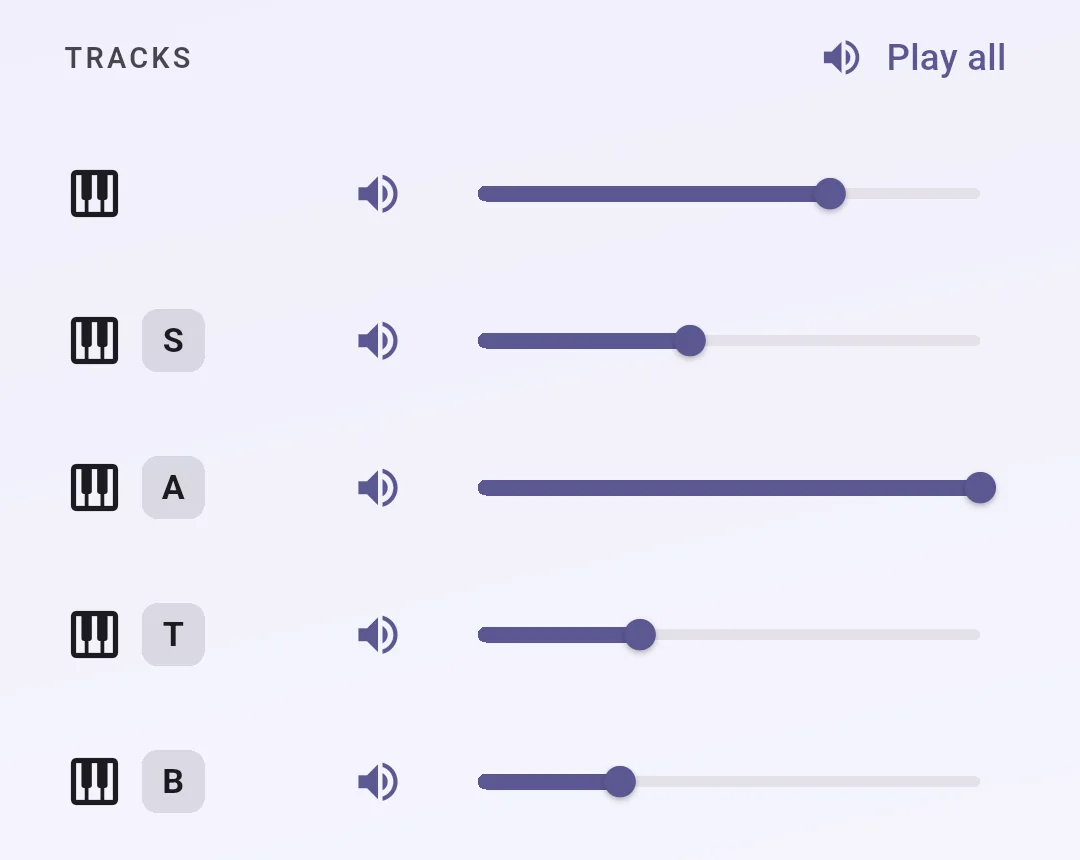
Tap Play all to hear the parts together. The player gives you a mixer, so you can push your own part up and everyone else down until you can hear what you’re supposed to be singing, or mute your part entirely and sing it yourself against the others.
Two settings worth knowing about, both in Settings:
- Set a level for each part saves the mix you like, so every Play all starts there instead of with everything at full. The faders still move during playback, this only changes where they begin.
- Count-in before recording plays a four-beat metronome lead-in so you can come in on time.
Skipping back ten seconds to catch a tricky entry is a button on the player, and worth learning early.
Your voice part
Your director sets your voice part, not you. Until they do, the app doesn’t know which of a song’s parts belongs to you, and the per-part levels feature will tell you so. If your part is wrong, ask your director or section leader.
Recording yourself
If your choir has member recordings switched on, you can record your part against the accompaniment. That gets its own guide, see recording your part.
The short version: what you record is a practice take, and practice takes are private. Other members never see them. Your director can see that you’ve practiced and can listen, which is the point, it’s how they help you.
Playing without a signal
Tracks you’ve already played are kept on your device, so playing a song again on the bus works without a connection. This happens by itself, there’s nothing to download and nothing to manage. A song you have never opened won’t be there, so if you know you’ll be offline, play the parts through once while you still have a signal.
Getting messages
If your choir uses announcements, you’ll get them by email at your sign-in address. Under Settings › Notifications you can group the non-urgent ones into a daily summary and set quiet hours. Urgent announcements ignore both, deliberately, so a same-day rehearsal change still reaches you.